For over a decade, Blue Letter Bible has offered a unique feature on our mobile apps: a parallel Bible version comparison where you can read two translations side by side. This gives users a quick and very effective tool for performing word and phrase studies. It also allows users to readily compare original language texts to the English translations.
We have received countless requests to bring this feature to the website over the years, and now, it’s finally here. We are beyond excited to announce that we have added this functionality to our website! The parallel Bible is not only a quick and easy way to compare English translations but an invaluable resource for students and teachers seeking quick reference to the original languages. For a detailed walkthrough of this tool, please see the “How to Use the Parallel Version Comparison” section below.
We are so blessed by the talented team of developers that work on BLB and its various offerings. If you are interested in learning more about the tool and its development, you can watch this interview with our Chief Executive Officer, Andy Guastaferro, and the project’s lead developer, David Larsen. May God bless your time in His Word
How to Use the Parallel Version Comparison
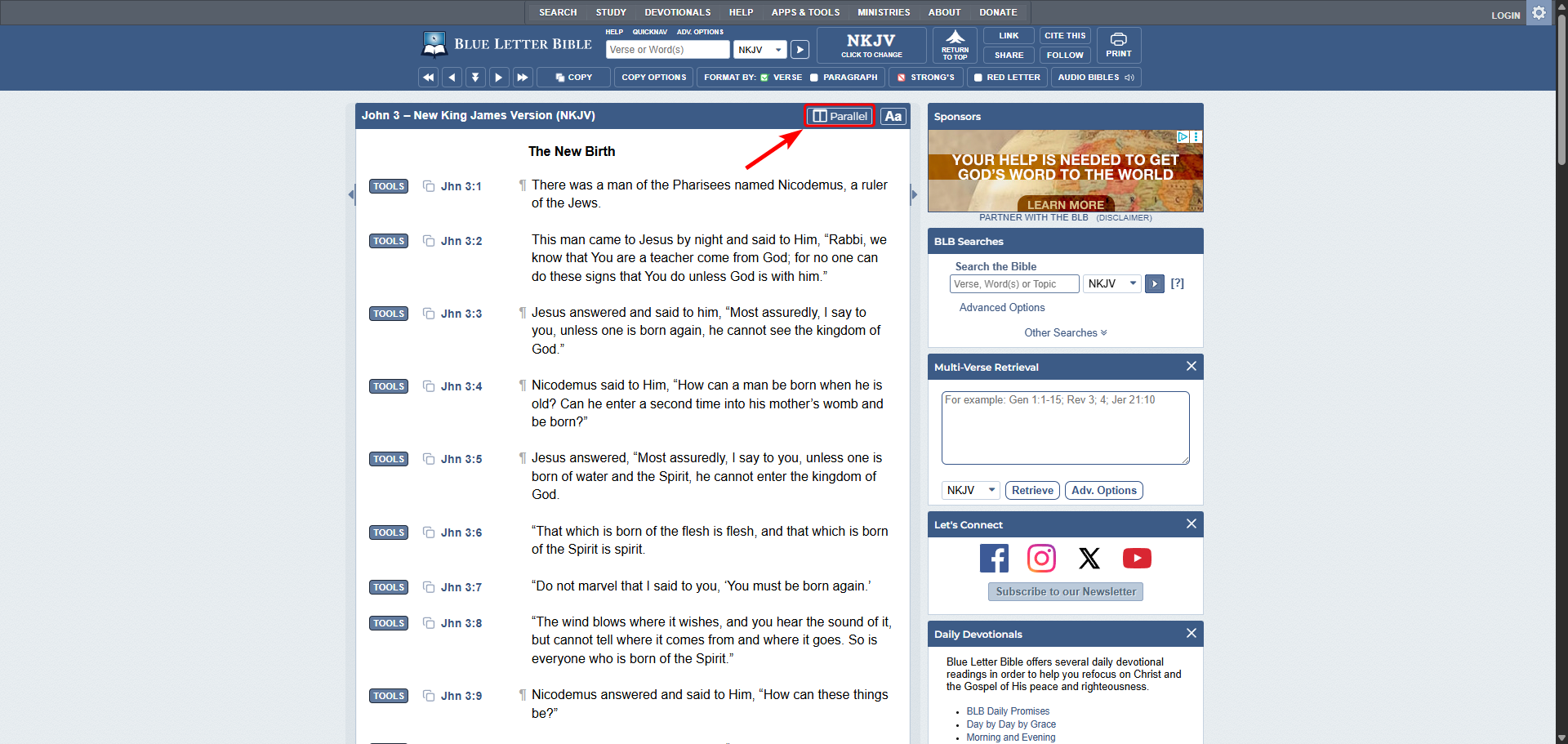
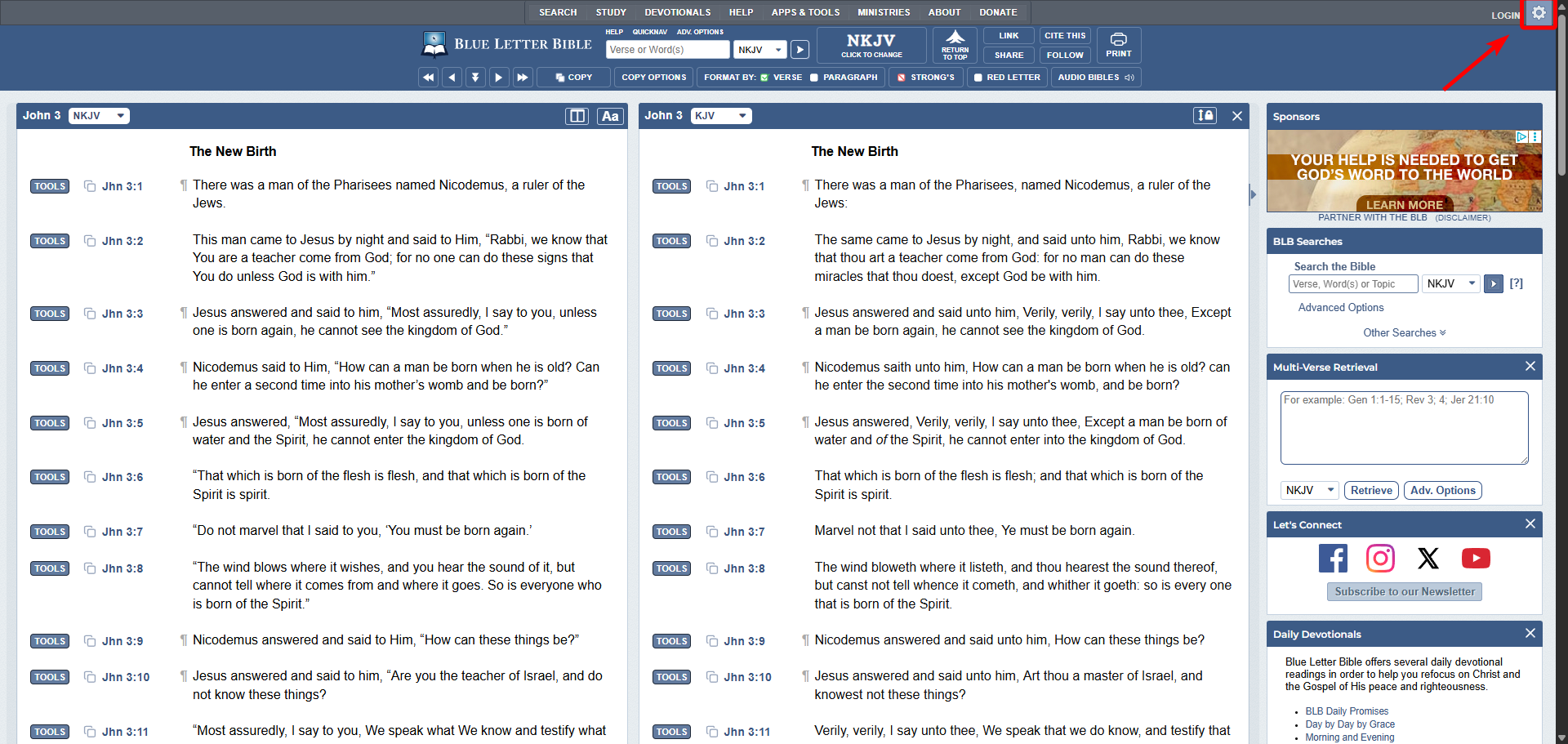
From any Bible page, you can interact with the “Parallel” in the top right corner of the Scripture reference bar.
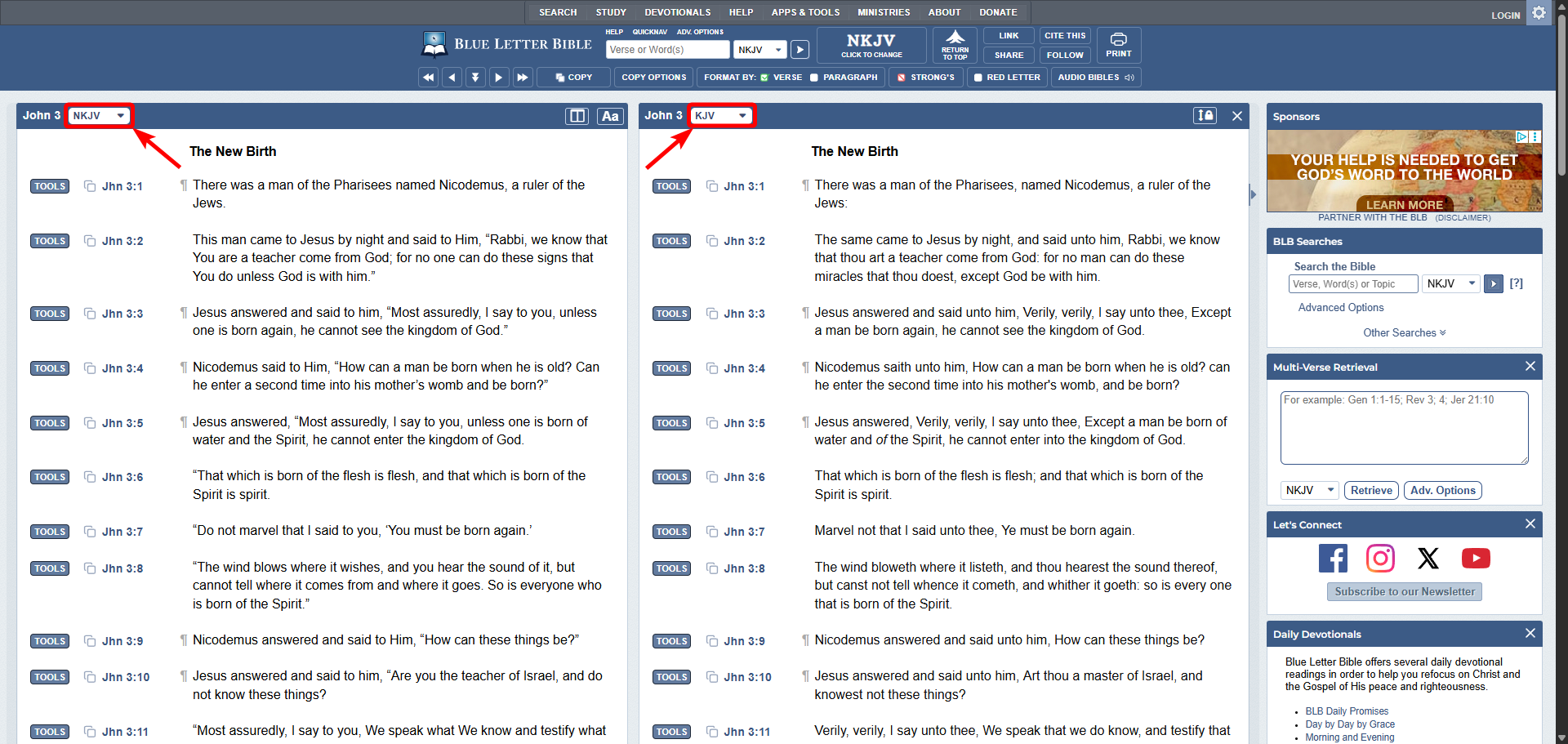
This opens a second Bible window which defaults to the King James Version. You can select your versions using the drop-downs next to the verse references in either reading pane.
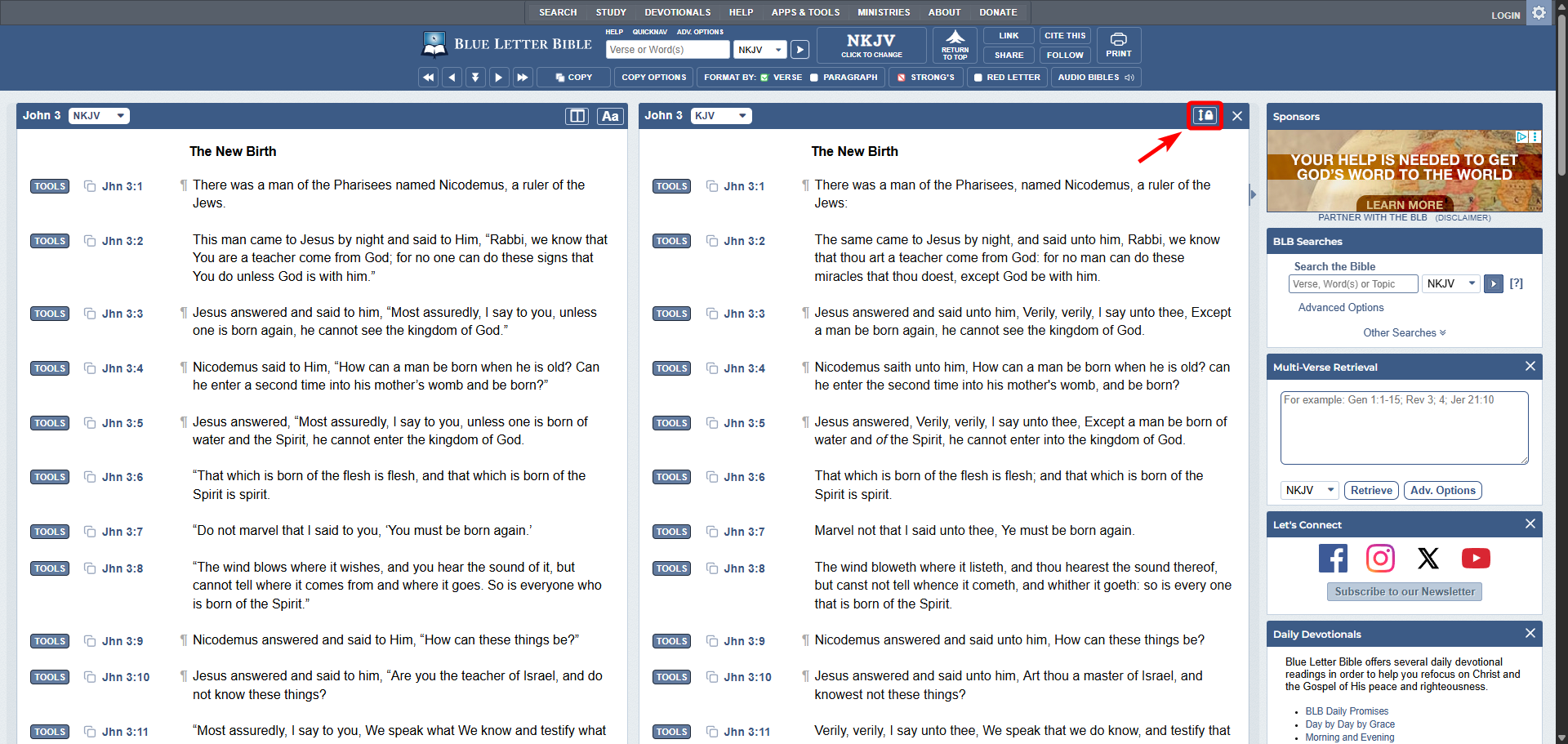
By default, scrolling will move the entire page. However, if you toggle the lock icon in the top right of the right window, you can scroll each one individually.
You can also change your default translations and whether parallel mode defaults to on or off. To do so, go to the gear icon in the top right corner of the main menu bar to access your user preferences.
In the “Bible Translation Preferences” window, you can change the default translations for both windows and whether the parallel column shows up by default.
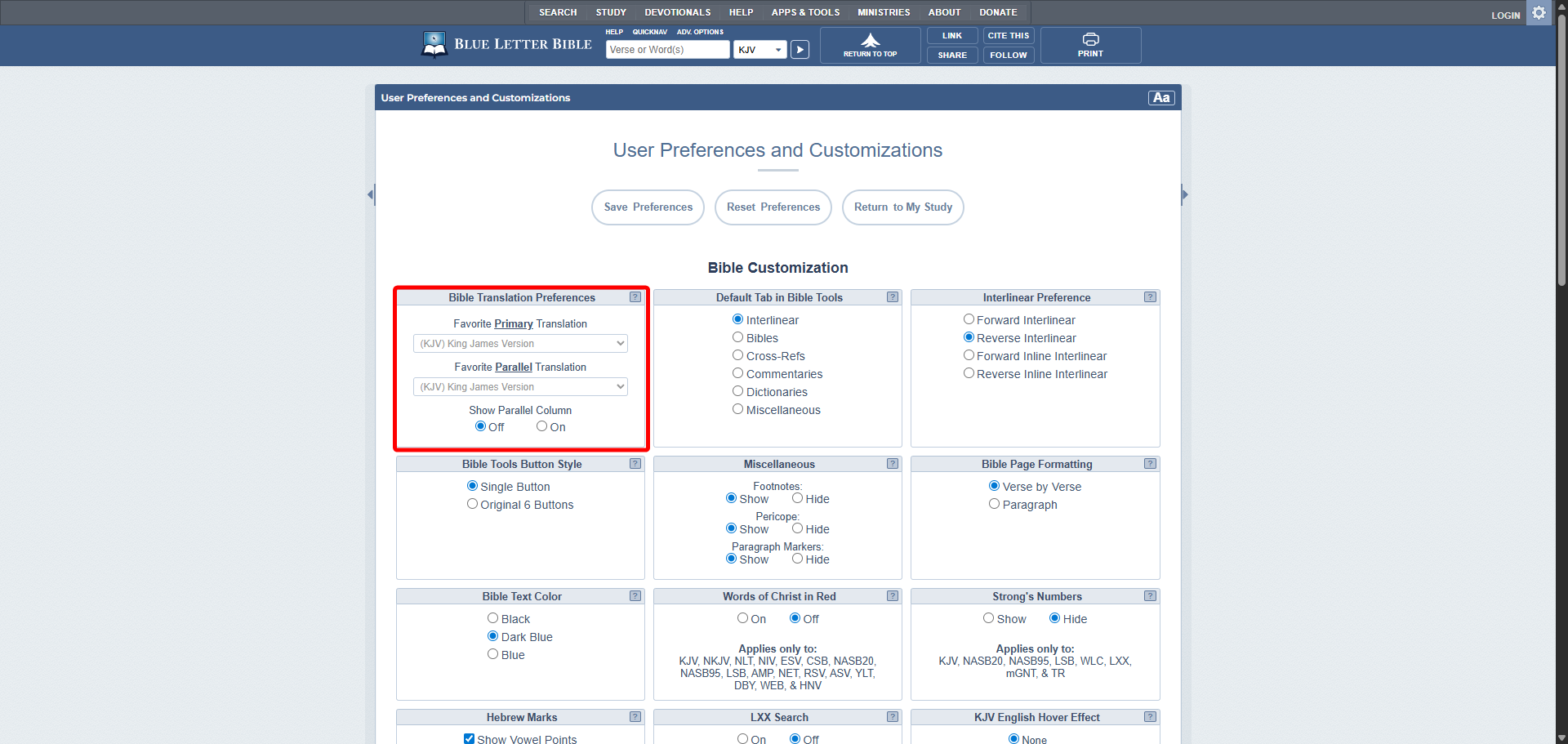
If you do not have a free Blue Letter Bible account, these preferences will only be saved in that browser session. However, if you do have an account, they will be applied whenever you use the BLB site while signed in. For more information on creating a free BLB account, check out our tutorial on YouTube.